Diff Viewer
FinderGit includes an inline diff viewer that shows changes for any modified file.
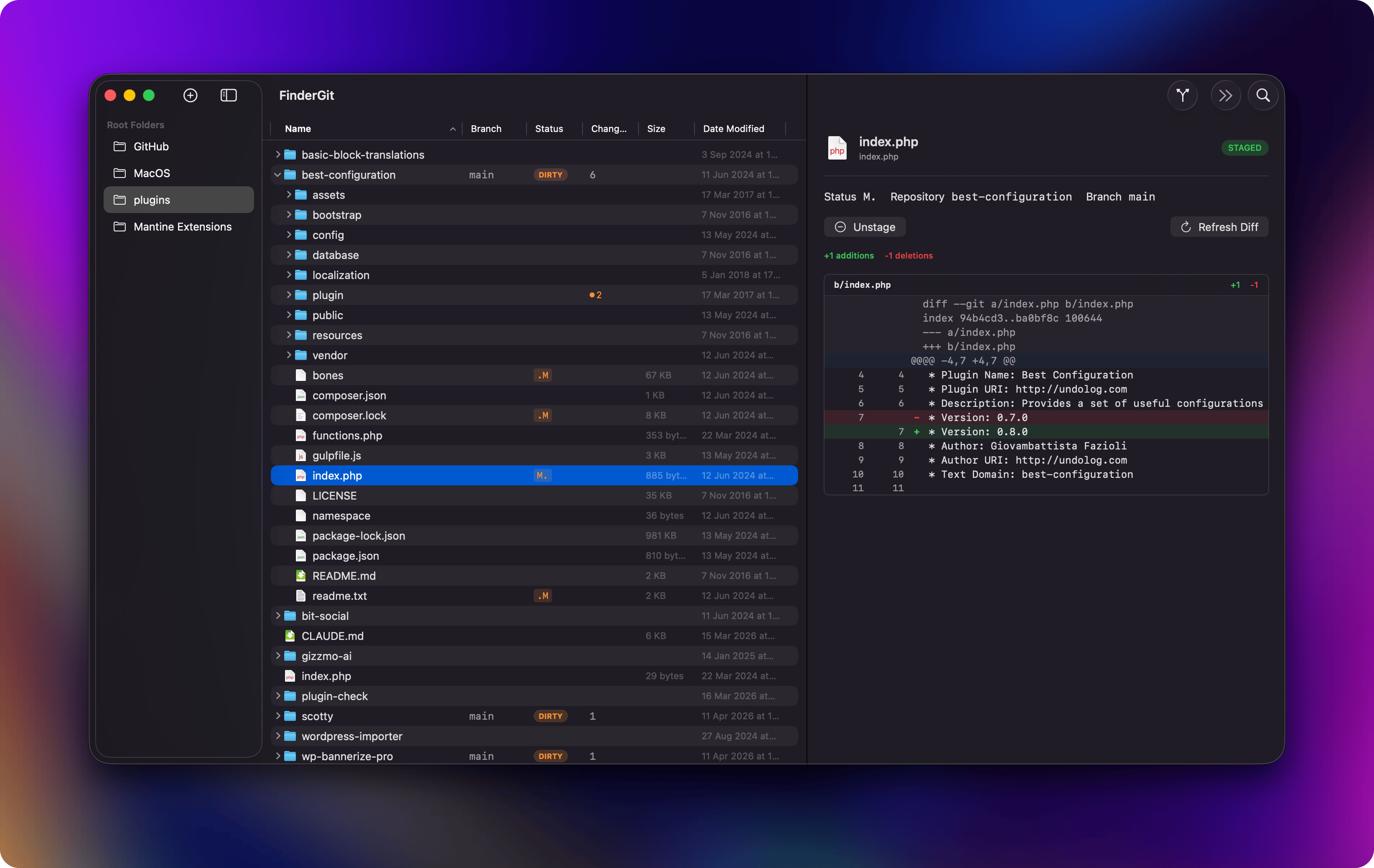
Viewing a diff
From the Detail Panel
When a repository is selected, the changes list shows all modified files. Click on a file name (not the Stage/Unstage button) to load its diff. The selected file name turns blue, and the diff appears below.
From file selection
When you select a single modified file in the tree view, the detail panel automatically loads and displays its diff.
Reading the diff
The diff view shows:
- Header — file path and stats (+N additions / -M deletions)
- Line numbers — old line number (left) and new line number (right)
- Added lines — green background with
+prefix - Removed lines — red background with
−prefix - Context lines — no background, showing surrounding unchanged code
- Hunk headers — light blue background showing
@@ -start,count +start,count @@
The diff supports horizontal scrolling for long lines and vertical scrolling for large diffs.
Diff types
FinderGit tries multiple diff strategies to show the most useful view:
git diff HEAD -- <file>— staged + unstaged changes combinedgit diff -- <file>— unstaged changes only (fallback)git diff --cached -- <file>— staged changes only (fallback)- For untracked files — shows the entire file content as “all added” (green)
Text selection
You can select and copy text from the diff view for use in commit messages or code reviews.
Last updated on
