Detail Panel
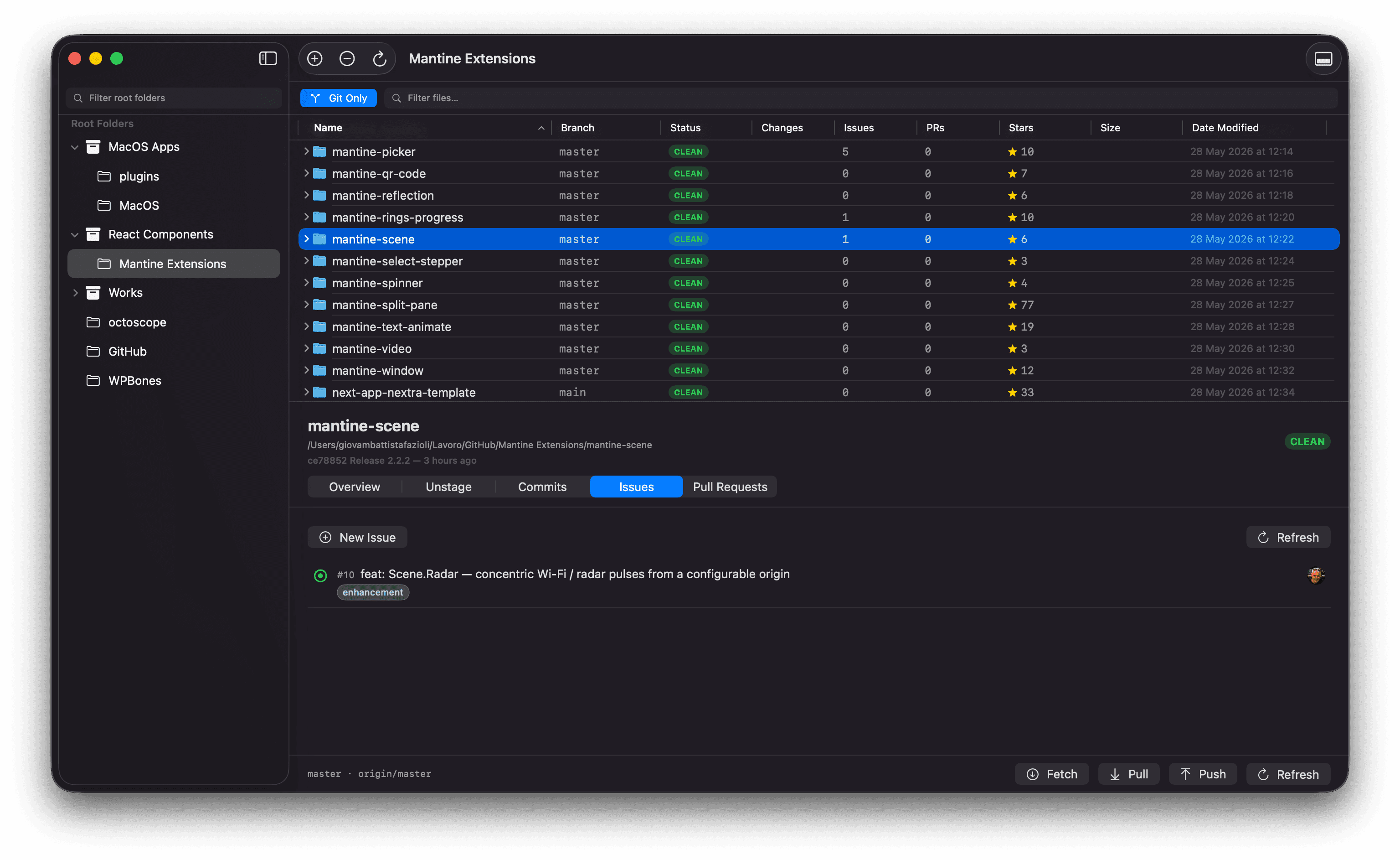
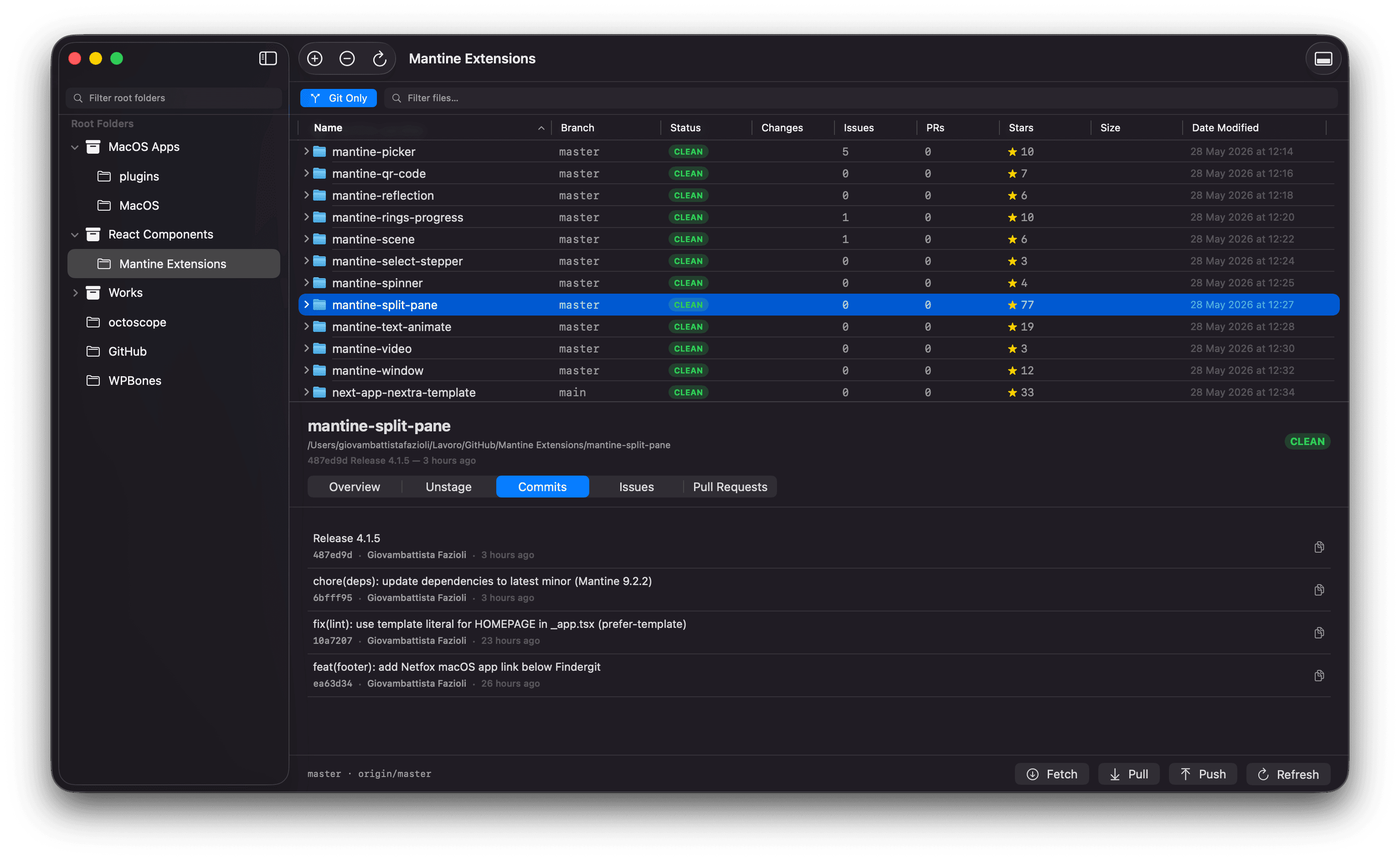
When you select a repository in the file browser, the right-hand detail panel splits into a tab strip on top, an informational body in the middle, and a docked action bar pinned at the bottom. Tabs hold the depth; the action bar holds the affordances that always need to be one click away.
The five tabs:
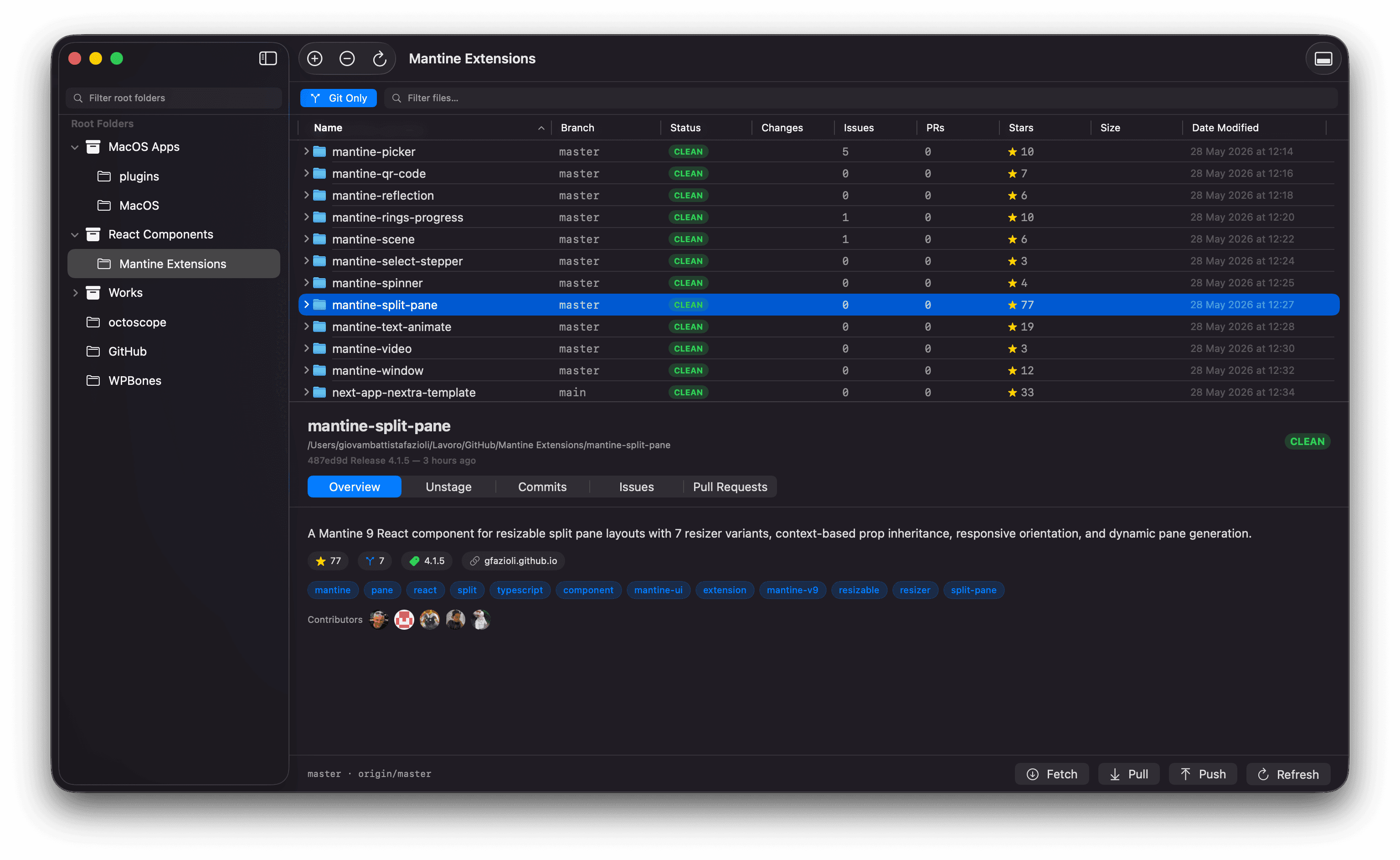
- Overview — at-a-glance facts about the repo (description, stars, topics, contributors, latest release) when it has a GitHub remote
- Unstage — working-tree changes, the diff, the commit form (including the AI commit button)
- Commits — recent local history from
git log - Issues — open issues on the GitHub repo
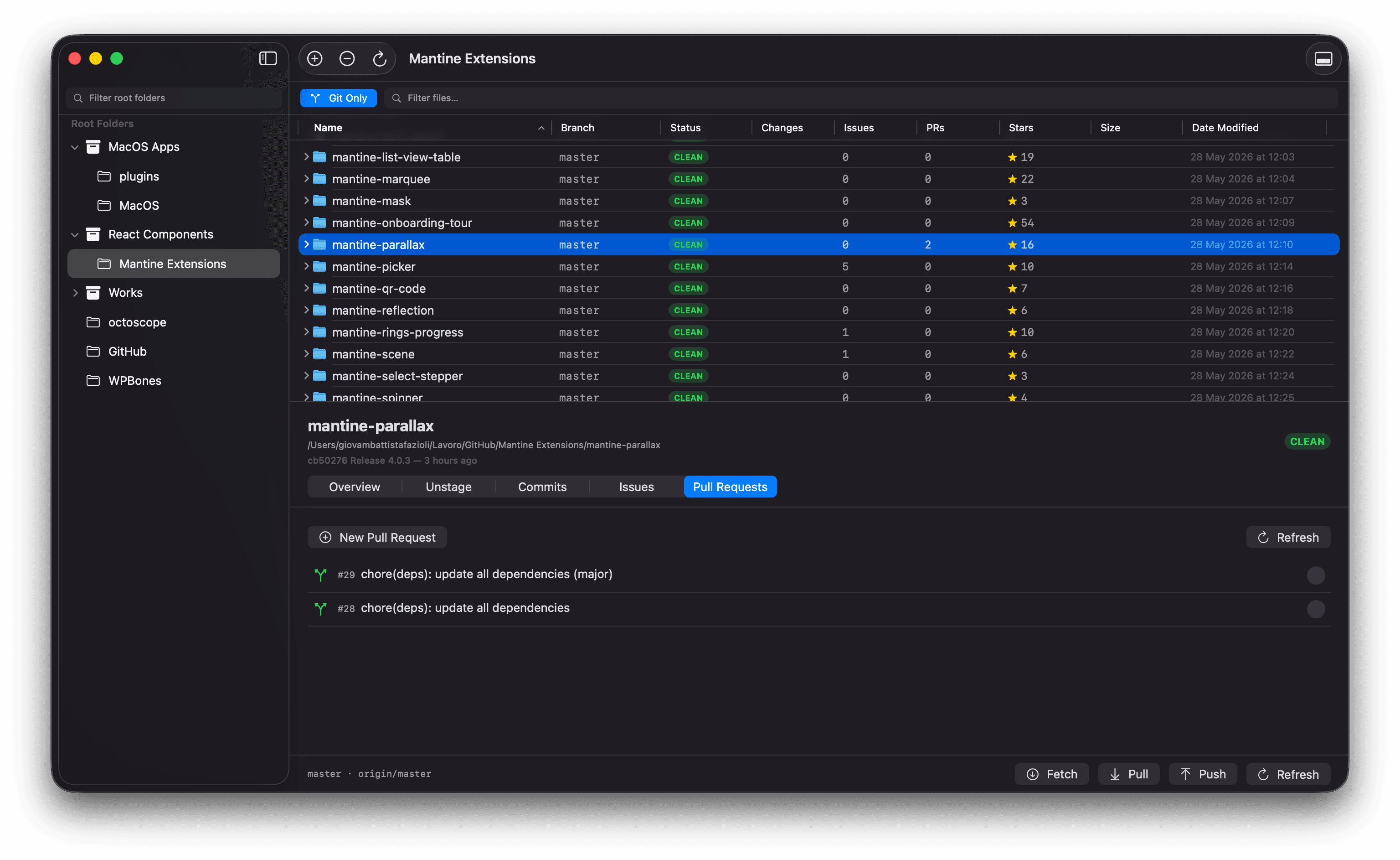
- Pull Requests — open pull requests on the GitHub repo
The active tab is remembered across selections and across app launches, so the panel always opens where you left it.
Docked action bar
The bottom edge of the panel carries:
- A compact branch summary —
branch · upstream · ↑N ↓M(and stash count when non-zero) - The four repo-global actions: Fetch · Pull · Push · Refresh
Because the bar is docked outside the scroll area, the actions stay reachable from every tab — you don’t have to leave Commits to push, or leave Issues to pull.
Overview
The Overview tab paints the GitHub-side identity of the repo:
- Description at the top
- A row of stat pills: ★ stars · ⎇ forks · 🏷 latest release · 🔗 homepage. Stars and forks are read-only; the release tag opens the GitHub release page in your browser, and the homepage pill opens the configured homepage URL.
- Topic chips (wrapping onto multiple lines when there are many)
- Top contributors — up to eight avatars, click an avatar to open that user’s GitHub profile
If the selected repo doesn’t have a GitHub remote (or the panel can’t reach GitHub), the section silently disappears and the tab shows a short hint pointing at where the operational view moved.
See GitHub Integration for how to enable the GitHub-driven tabs.
Unstage
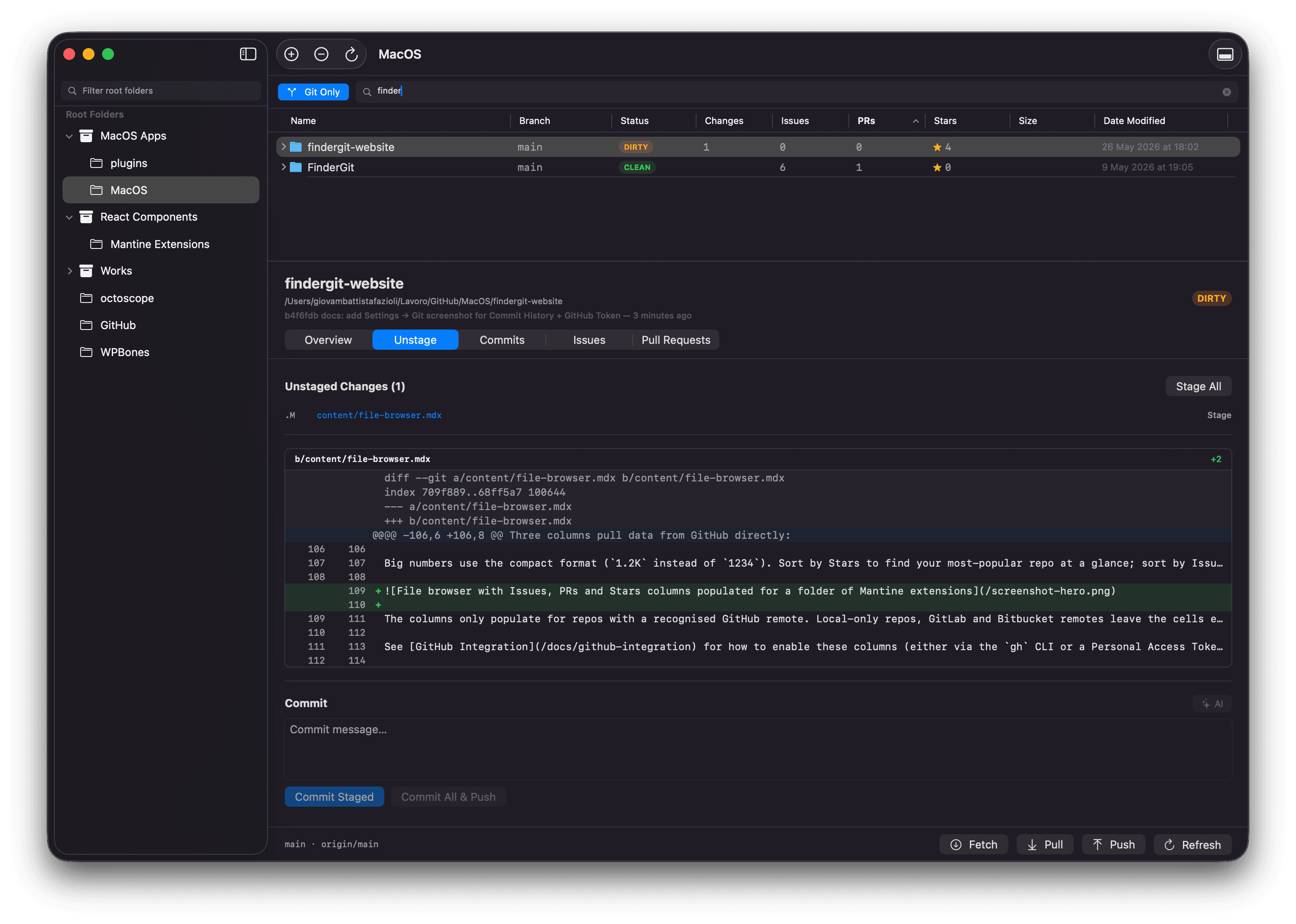
This is where the working-tree affordances live. The Unstage tab holds:
- The changes list (staged and unstaged paths, with status markers)
- An inline diff viewer for the selected change (see Diff Viewer)
- The commit form with the AI Commit button (see AI Commit Messages)
This was previously folded into Overview; splitting it out keeps the informational and operational concerns separate.
Commits
A scrollable list of recent commits from local git log. Each row shows:
- The commit subject (up to two lines)
- The short SHA, author, and a relative date
- A copy button on the right that copies the full SHA to the clipboard — the icon flips to a green ✓ for ~1 second so the action has visual feedback
Hover any row to highlight it. The number of commits shown defaults to 4 to keep the panel skim-friendly; you can raise it up to 50 in Settings → Git → Commit History.
Issues and Pull Requests
Both tabs share the same row shape:
- A GitHub-style state icon (filled circle for issues — green for open, purple for closed; pull-request arrows for PRs — green for open, grey for draft, purple for merged, red for closed)
- The
#number - The title (up to two lines)
- Coloured label chips
- The author’s avatar on the right
Click anywhere on a row to open the issue or PR on github.com. Each tab has a New Issue / New Pull Request button in the header that opens the corresponding “new” page in your browser, plus a Refresh button that bypasses the 60-second cache when you want fresh data.
Both tabs need either a working gh CLI (see GitHub Integration) or a Personal Access Token in Settings; on repos with no recognised GitHub remote (or no remote at all), the tabs show a short explanation instead of an empty list.